001 — Getting Started
Signing In
Screen name: Sign In Business purpose: Verify who you are and open your company's portal. Who uses it: Everyone. Navigation path: Open the portal address in your browser. If you are not signed in, you are sent here automatically.
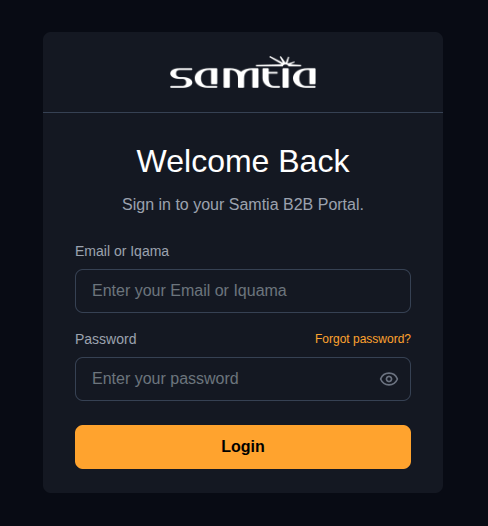
What you enter
| Field | What to type |
|---|---|
| Email or National ID / Iqama | Your work e-mail address, or the National ID / Iqama number your Account Manager registered for you |
| Password | Your password |
You can sign in with either your e-mail or your National ID / Iqama number — whichever you remember. Both work.
Available actions
| Action | What happens |
|---|---|
| Sign In | Opens your Home page |
| Forgot password | Starts the password reset described below |
Business rules
- Your account must be switched on by two people before you can sign in: your Account Manager at SAMTIA, and your own company administrator. If either has switched you off, you will be told your account is not active.
- If you mistype your e-mail or password, you are told the credentials are invalid. Repeated failures are not locked out automatically — contact your Account Manager if you are stuck.
- Password is the only way in. There is no code-based or passwordless sign-in.
Resetting a Forgotten Password
Screen name: Reset Password Business purpose: Let you set a new password yourself, without waiting for an administrator. Who uses it: Anyone who has forgotten their password. Navigation path: Sign In → Forgot password.
This is a three-step screen. You move forward one step at a time.
flowchart LR
    A["Step 1<br/>Enter your e-mail"] --> B["We e-mail you<br/>a verification code"]
    B --> C["Step 2<br/>Enter the code"]
    C --> D["Step 3<br/>Choose a new password"]
    D --> E["Sign in with<br/>the new password"]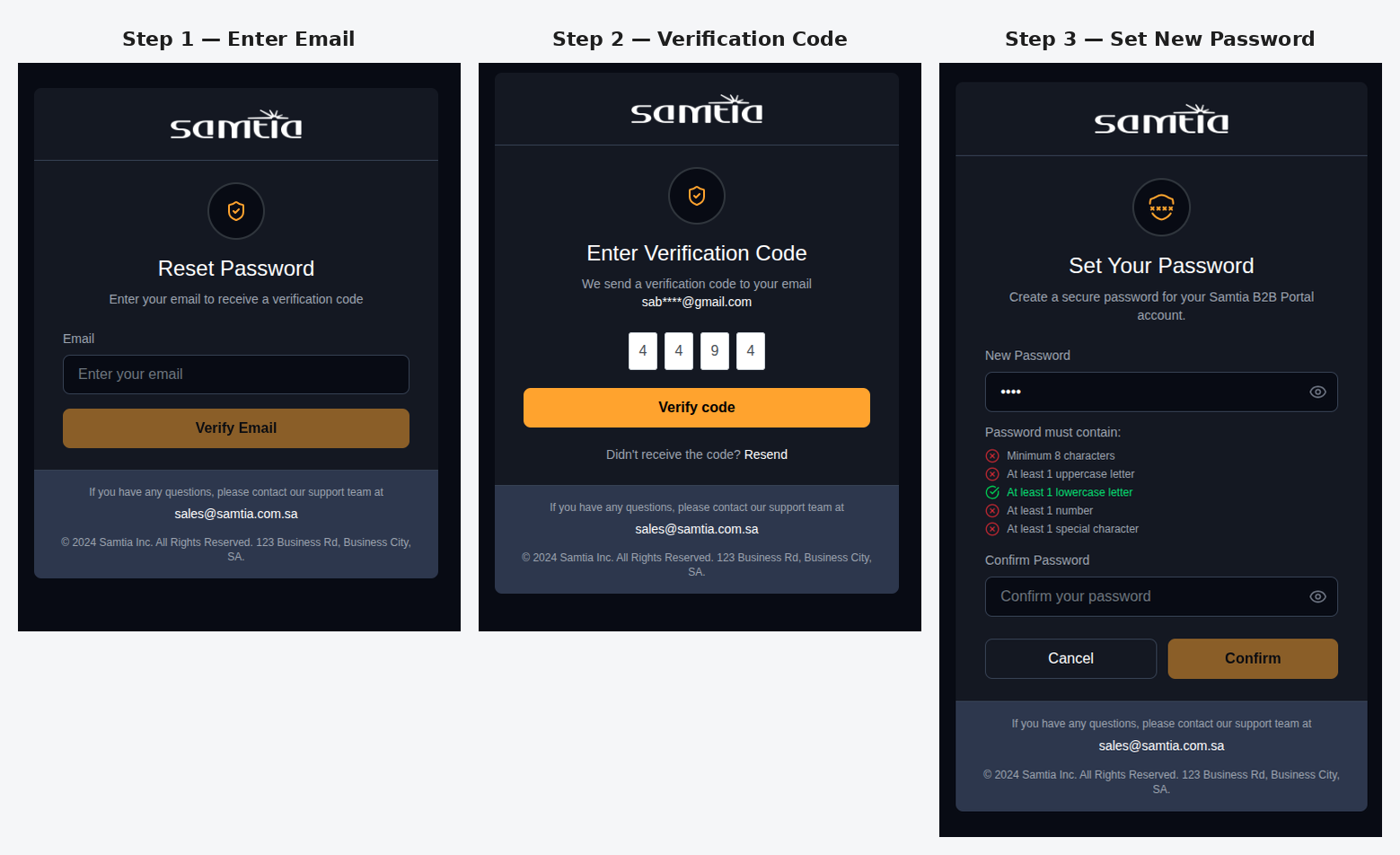
| Step | What you do | Notes |
|---|---|---|
| 1 — Email | Type the e-mail address on your account | You can resend the code if it does not arrive |
| 2 — Enter Verification Code | Type the code from the e-mail | Codes expire; request a new one if it has been a while |
| 3 — New Password | Type the new password twice | The screen shows a live checklist and confirms All password requirements met |
Business rules
- The verification code proves you own the e-mail address. It does not sign you in — you still sign in normally afterwards with your new password.
- If the two password fields do not match, the screen tells you Passwords do not match and will not let you continue.
- Your account must have an e-mail address on file. If it does not, ask your Account Manager to add one.
Already signed in and want to change your password?
You do not need this screen. Ask your Account Manager, or use your profile options — no code is required when you are already signed in.
Where You Land After Signing In
Signing in takes you straight to your Home page. You cannot access SAMTIA's own internal systems from your account.
Signing Out
Use the top-right user menu (your name) → Sign Out.
Signing out also marks you offline in chat, so your Account Manager knows you have left.
Light and Dark Mode
The portal can be shown light or dark. Your choice is remembered on your device.
Switch it from the user menu → Light mode / Dark mode.
Getting Help
| Page | What it offers | Who can open it |
|---|---|---|
| Help | Guidance and support information | Anyone, including before signing in |
| Release Notes | A dated list of recent improvements, written in plain language | Anyone, including before signing in |
The portal links to Help from the user menu. Release Notes are grouped by area, so you only need to read the entries relevant to you.
Tips
- Bookmark your portal address. If a colleague sends you a link that behaves oddly, check you are on the right environment — the live system and a training environment use different addresses.
- Your session stays open as you work, but if it expires you are returned to Sign In with your place remembered — sign in again and you will be taken back where you were.