007 — Messages and Notifications
The platform gives you three separate ways to communicate. Choosing the right one saves time and keeps records clean.
| Channel | Best for | Where it lives |
|---|---|---|
| Chat | Quick back-and-forth while both people are available | The Messages screen, or Open Chat on an order |
| Comments | Discussion that must stay attached to an order permanently | The order's Comments panel |
| Account Manager Note | A standing statement about an order you must see | The order summary, written by your Account Manager |
Live Chat
Screen name: Chat Business purpose: Talk to your Account Manager directly. Who uses it: All Customer Portal users. Navigation path: Any order → Open Chat.
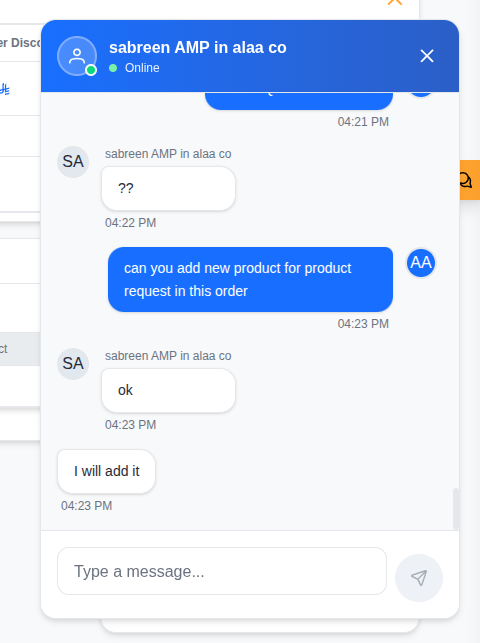
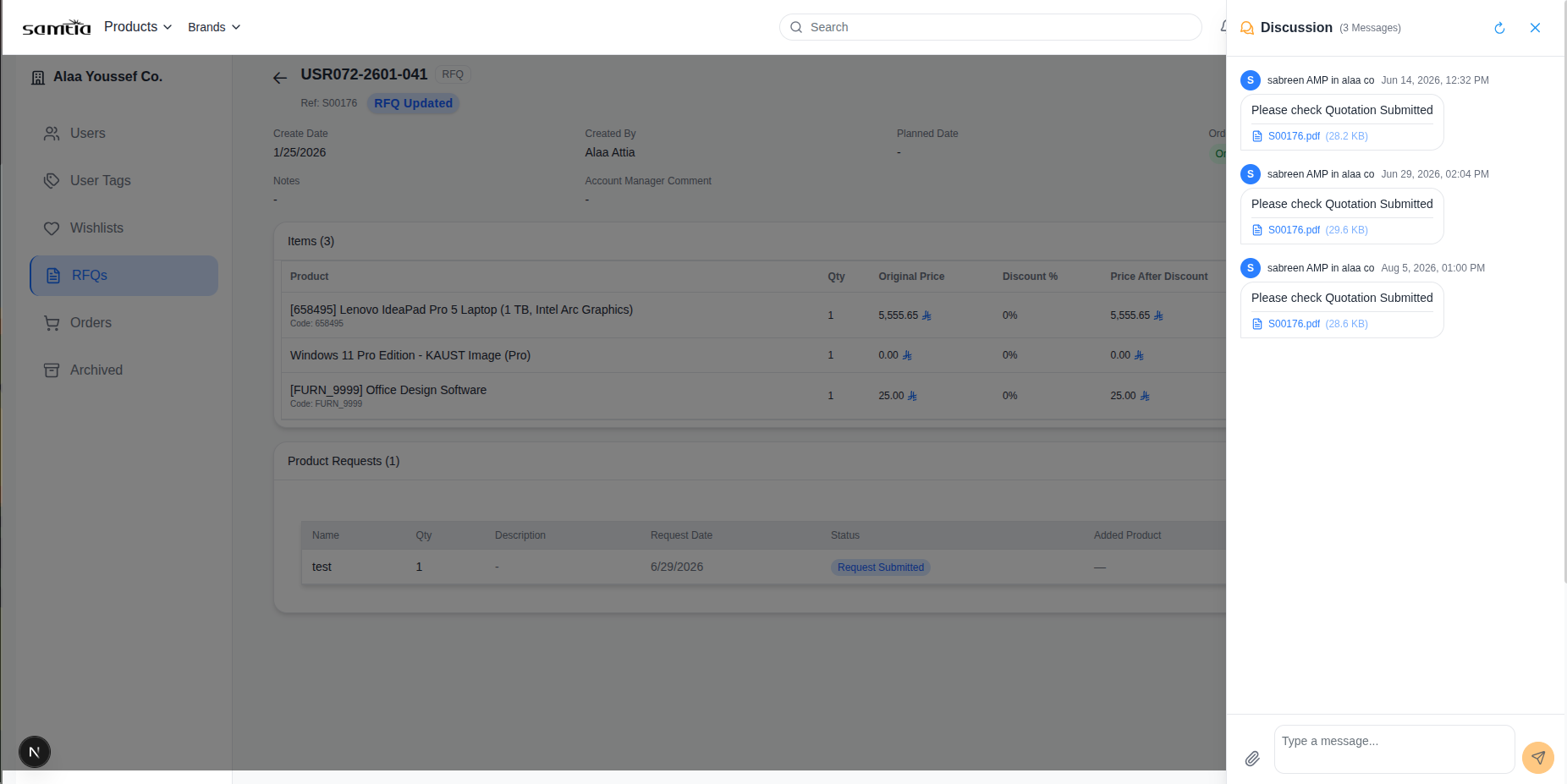
Your company has one shared conversation with your Account Manager. Colleagues at your company see the same history — chat is a company channel, not a private one.
Business rules
- Messages are delivered live. Both sides see new messages without refreshing.
- Opening a conversation marks it as read and clears the unread count.
Online Status
People appear as online, away or offline in the chat window — this tells you whether your Account Manager is currently available.
Status updates automatically. Signing out marks you offline immediately.
Practical use: if your Account Manager is online, a chat message usually gets a fast answer. If they are offline, a comment on the order or an e-mail is more likely to be seen.
Notifications
Where: The 🔔 bell in the portal header.
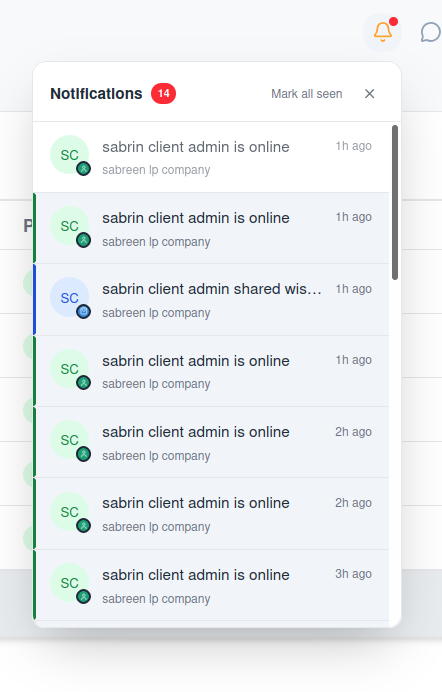
What triggers a notification for you
| Event |
|---|
| An order changes stage |
| A new message arrives from your Account Manager |
| A colleague at your company signs in or is activated |
Reading them
| Action | Result |
|---|---|
| Click a notification | Opens the record it refers to |
| Mark all as seen | Clears the unread indicator |
When there is nothing new, the panel reads All caught up.
Business rules
- You never receive a notification for your own action. If you submit a request, you are not told about it — your colleagues are.
- Notifications are shared across your company. A colleague may have already acted on one.
E-mail Alerts
Some events also send an e-mail, so nothing is missed when nobody is signed in.
You receive an e-mail when:
- A quotation is sent to you.
- You (or a colleague) are invited to the portal.
- You request a password reset code.
Attention Flags on Sales Orders
When you share a draft request or post a message, the order is flagged for your Account Manager as needing attention.
flowchart LR
    A["You share a draft request<br/>or post a message"] --> B["Order flagged for<br/>your Account Manager"]
    B --> C["Your Account Manager<br/>responds"]
If you have not heard back on something you shared, a follow-up chat message is a good next step.
Choosing the Right Channel
flowchart TB
    Q{"What are you<br/>communicating?"} -->|"Quick question,<br/>they're online"| CHAT["Chat"]
    Q -->|"Must stay on the<br/>record permanently"| COM["Comment on the order"]
Q -->|"A document"| ATT["Attach it to the order"]| Situation | Best channel |
|---|---|
| "Is this in stock?" | Chat |
| "Approved by our finance team on 4 March" | Comment |
| Revised specification document | Attachment |
| "Why has the price changed since last quarter?" | Chat, then record the outcome as a Comment |
Tips
- Check whether your Account Manager is online before chasing by chat. If they are offline, they will not reply immediately, however urgent the message.
- Anything you will need to refer back to belongs in a Comment, not chat. Chat is for the conversation; comments are the record.
- Watch the Account Manager Note on your orders. It is the most common place a question or condition is recorded, and it is easy to scroll past.