006 — Customer Portal: Company Management
These screens are for Company Administrators only. A Standard User who opens them is redirected to Orders.
Portal Users
Screen name: Portal Users Business purpose: Manage which of your colleagues can use the portal, and what state their account is in. Who uses it: Company Administrators. Navigation path: User menu → Company Profile → Users.
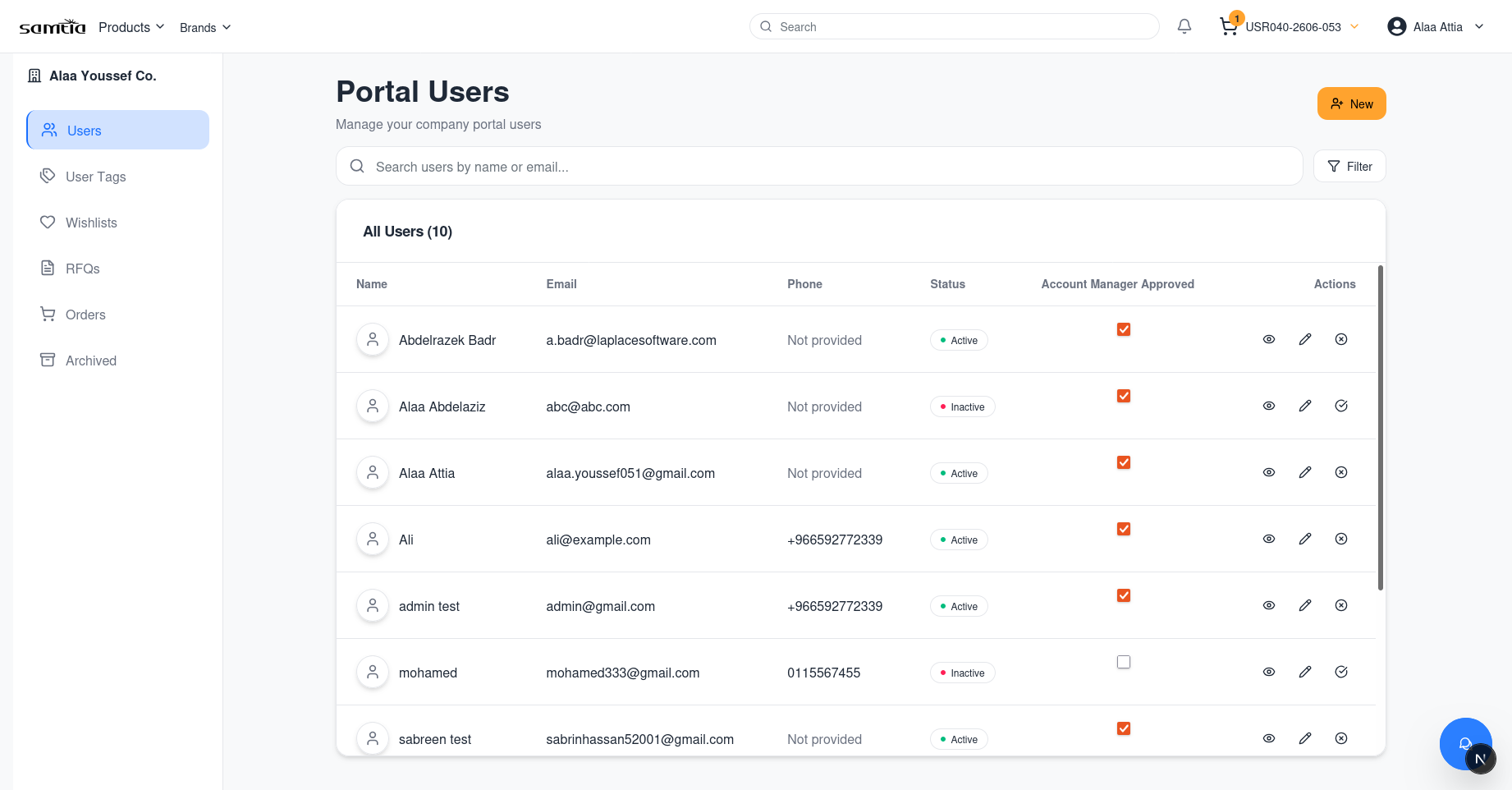
Main information displayed
| Column | Meaning |
|---|---|
| Name | The colleague's full name |
| Their sign-in address | |
| Phone | Contact number, or Not provided |
| Status | Active or Inactive — the switch you control |
| Account Manager Approved | A tick box showing whether SAMTIA has approved the account. You cannot change this |
Search
Type in Search users by name or email... to narrow the list.
Available actions
| Button | What it does |
|---|---|
| 👁 View | Opens the colleague's full details |
| ✏️ Edit | Changes their name, e-mail, phone and tags |
| Activate | Switches the account on |
| Deactivate | Switches the account off — they can no longer sign in |
| 🗑 Delete | Removes the account permanently |
| Add user | Creates a new portal account |
Creating a user
| Field | Required | Notes |
|---|---|---|
| Full Name | Yes | |
| Yes | Becomes their sign-in address and must be unique | |
| Phone | No | |
| Tags | No | See User Tags below |
After creating the account, ask your Account Manager to send the invitation so your colleague receives their access details.
Business rules
- Both switches must be on. Your colleague can only sign in when Status is Active and Account Manager Approved is ticked. If you have activated someone and they still cannot sign in, SAMTIA has not approved them — contact your Account Manager.
- You cannot deactivate or delete your own account. This prevents you locking your company out of its own administration.
- Deactivating someone takes effect immediately, even if they are signed in and working at that moment — see 002.
- An e-mail address already in use will be refused.
- Deleting is permanent. Deactivate instead when someone might return, or when you want to keep their history clearly attributed.
User Tags
Screen name: User Tags Business purpose: Group colleagues in a way that matches how your business actually works. Who uses it: Company Administrators. Navigation path: User menu → Company Profile → User Tags.
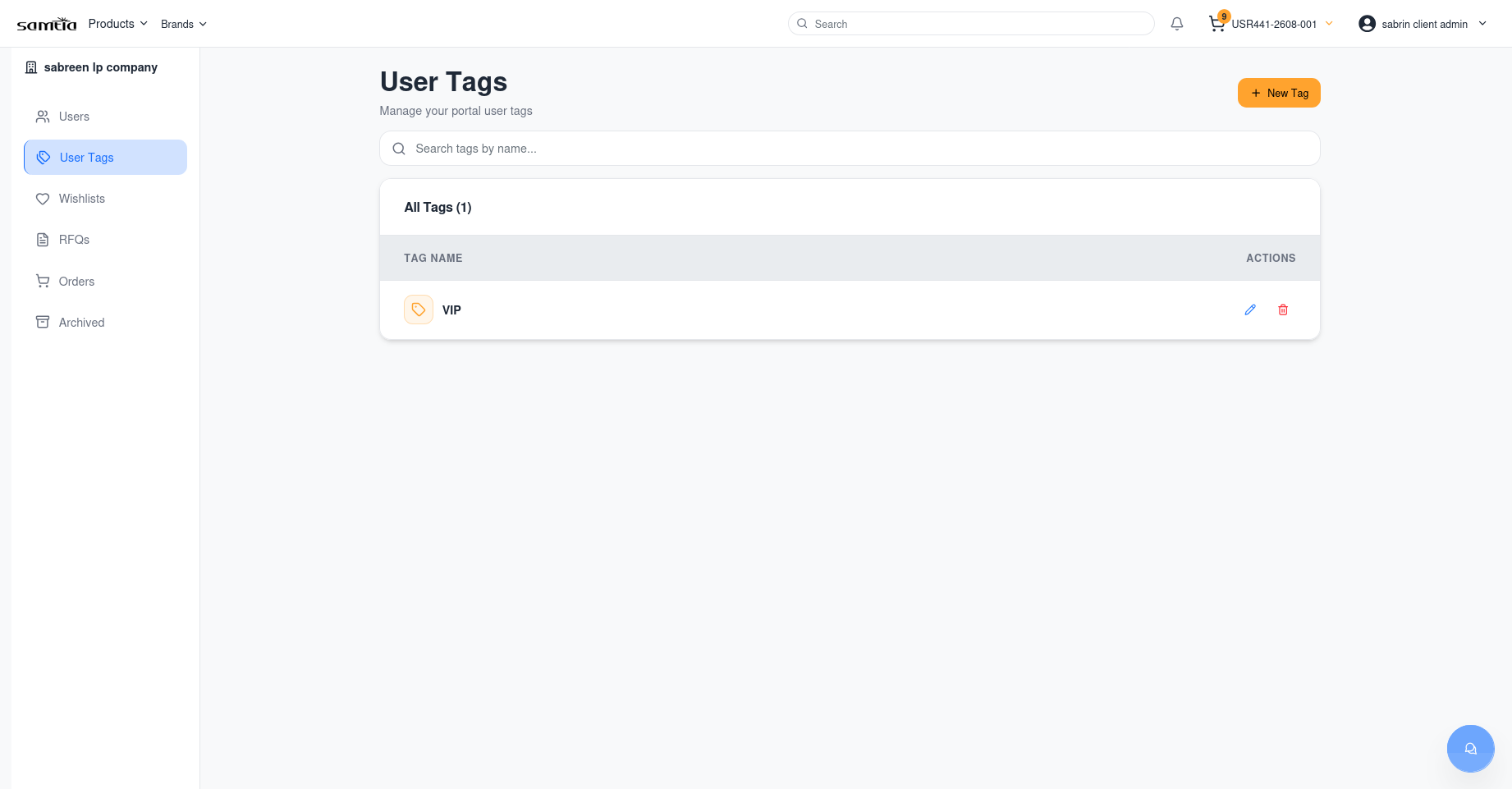
What tags are for
Tags are free-form labels you define — by department, site, budget holder, seniority, or anything else. Common examples: Procurement, Lab Team, Riyadh Branch, Approver.
Available actions
| Action | Result |
|---|---|
| Create tag | Adds a new label |
| Edit tag | Renames it everywhere it is used |
| Delete tag | Removes it from all users |
| Assign a tag | Done on the user record, via View or Edit |
Business rules
- Tags belong to your company only. Other customers cannot see them, and you cannot see theirs.
- A tag name must be unique within your company.
- Deleting a tag removes it from users but does not affect the users themselves.
User Details
Screen name: User Details Business purpose: See and update everything about one colleague. Who uses it: Company Administrators. Navigation path: Company Profile → Users → 👁 View on a row.
What the screen shows
- Full name, e-mail, phone
- Current status and whether SAMTIA has approved the account
- Assigned tags
- The invitation QR code, where one has been generated
Available actions
| Action | Result |
|---|---|
| Edit | Update name, e-mail, phone and tags |
| Activate / Deactivate | Switch portal access on or off |
| Back | Return to the user list |
Everyday Administration Tasks
A new colleague joins
flowchart LR
    A["Company Profile<br/>→ Users"] --> B["Add user —<br/>name and e-mail"]
    B --> C["Assign tags"]
    C --> D["Ask your Account Manager<br/>to send the invitation"]
    D --> E["Colleague receives<br/>their access details"]
A colleague leaves
Deactivate rather than delete. Their past orders and comments stay clearly attributed, and you can reverse it if they return.
- Company Profile → Users
- Find the person
- Deactivate
Delete only when you are certain the account should be erased entirely.
A colleague changes department
Edit the user and change their tags. Nothing else needs to change.
Tips
- Review your user list quarterly. Leavers who were never deactivated are the most common access problem in B2B portals.
- Agree your tag scheme before creating tags. A handful of meaningful tags is far more useful than thirty overlapping ones.
- Remember the two-switch rule when troubleshooting sign-in problems — it explains almost every case.