005 — Customer Portal: Sales Orders
All four order sections share the same screen design, so learning one teaches you all four. They differ only in which orders they show.
The Four Sections
| Section | Shows | You are waiting on |
|---|---|---|
| Draft Requests | Baskets you are still building | Yourself |
| RFQs | Requests sent to SAMTIA, and quotations received back | SAMTIA, then yourself |
| Orders | Confirmed business being fulfilled | SAMTIA |
| Archived | Cancelled requests, kept for reference | Nobody |
flowchart LR
    W["Draft Requests"] -->|"Submit RFQ"| R["RFQs"]
    R -->|"Quotation accepted<br/>and PO uploaded"| O["Orders"]
    R -->|"Cancelled"| A["Archived"]
    O -->|"Cancelled"| A
The Sales Orders List Screen
Screen name: Draft Requests / RFQs / Orders / Archived Business purpose: Find and act on a piece of business. Who uses it: All Customer Portal users. Navigation path: Company Profile → choose the section on the left.
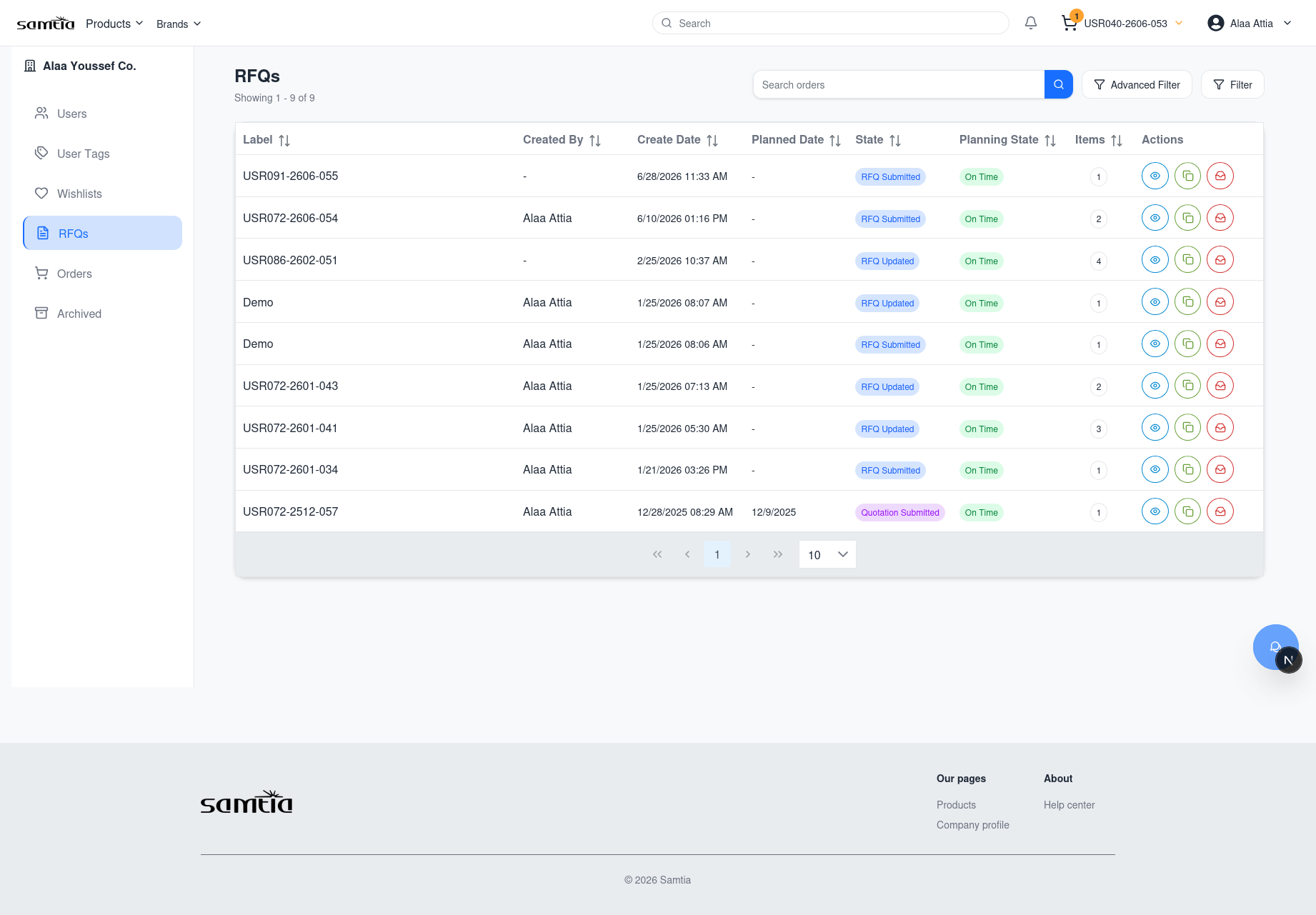
Main information displayed
| Column | What it tells you |
|---|---|
| Label | The name given to the draft request or order |
| Created By | Which colleague started it |
| Create Date | When it was started |
| Requested Delivery Date | When the goods are needed |
| State | Where it has reached — see 008 |
| Schedule Status | Late, On Time or Upcoming, based on the requested delivery date |
| Items | How many product lines it contains |
Search and filters
| Tool | What it does |
|---|---|
| Search orders | Finds by name or label |
| Filters | Narrows by Created Date range and Requested Delivery Date range (From / To) |
| Column sorting | Click a column heading to sort |
| Paging | Move through long lists |
Schedule Status is the fastest way to spot trouble: filter or sort on it to find everything running late.
Available actions per row
| Button | When it appears | What it does |
|---|---|---|
| 👁 View Details | Always | Opens the full order |
| 📋 Copy | Always | Creates a new draft request containing the same products |
| 🗑 Delete | Only while the record is still a Draft Request | Removes it permanently |
| 📥 Archive | Only on RFQs and quotations in progress | Moves it out of the active list |
Business rules
- Delete only works on draft requests. Once submitted, business records are archived rather than deleted, so the history is preserved.
- Only the creator can delete a draft request.
- Copy is available on any record, at any stage — including completed orders.
The Sales Order Detail Screen
This is where the real work happens. It is the same screen for a draft request, an RFQ and a confirmed order — the available buttons change with the stage.
Screen name: Order Details Business purpose: Review and edit the contents, talk to your Account Manager, and move the order to its next stage. Who uses it: All Customer Portal users. Navigation path: Any orders list → 👁 View Details.
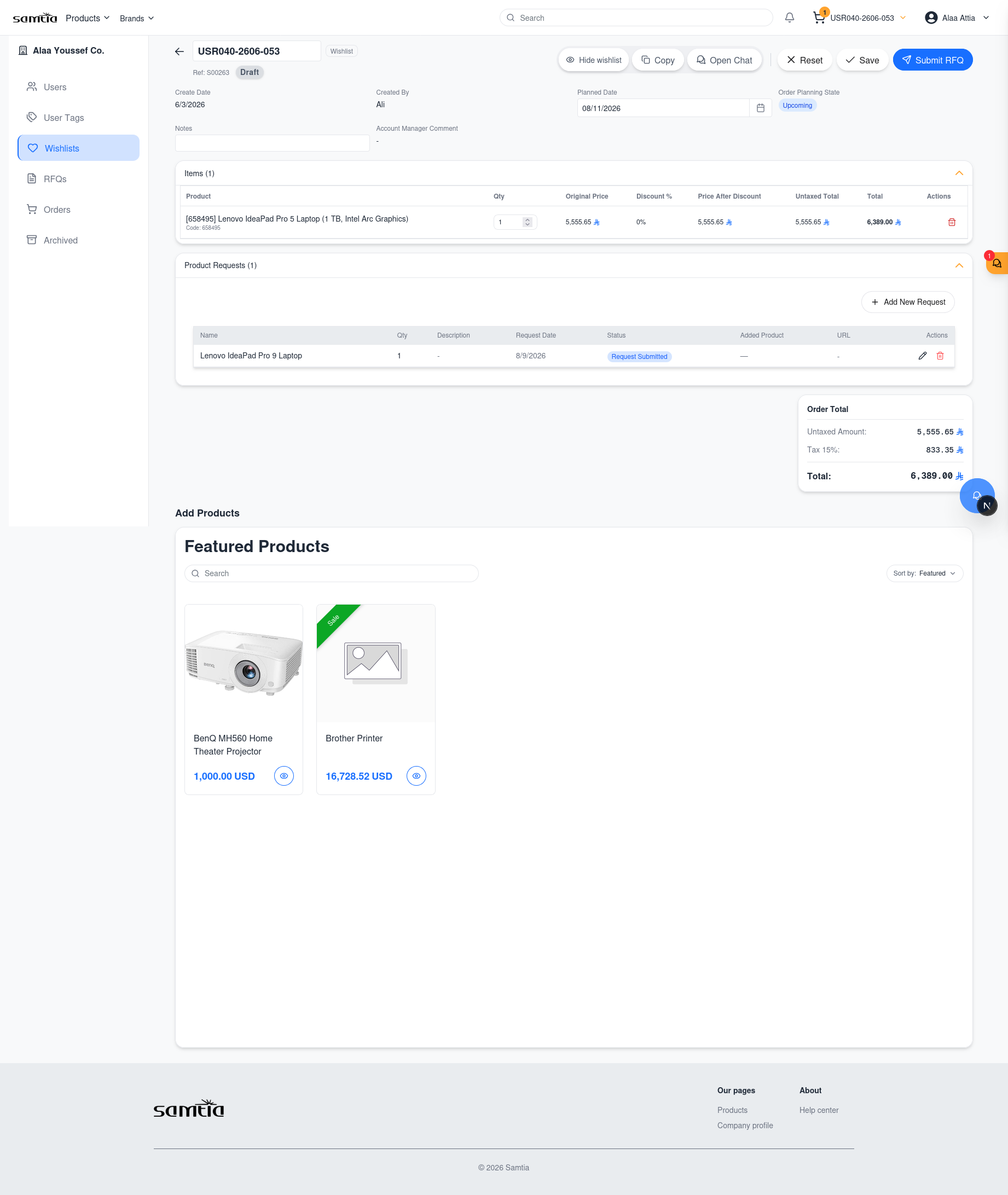
Screen layout
flowchart TB
    H["Header — order label, state badge, action buttons"] --> S["Summary — dates, notes, Account Manager note"]
    S --> L["Product lines table"]
    L --> P["Panels — Add Products · New Product Requests · Comments & Attachments"]
Summary information
| Field | Meaning |
|---|---|
| Create Date | When it was started |
| Created By | Which colleague started it |
| Requested Delivery Date | When you need the goods — you can edit this |
| Order Schedule Status | Late / On Time / Upcoming |
| Notes | Your own note about the purpose of this order |
| Account Manager Note | A message from SAMTIA about this specific order |
| Return Reason | Shown when SAMTIA has returned the order to you, explaining why |
The product lines table
| Column | Meaning | Can you edit it? |
|---|---|---|
| Product | What is being bought | Remove the line only |
| Qty | How many | Yes, while the order is editable |
| Target Price | The price you are hoping for | Yes, while the order is editable |
| Original Price | List price before discount | No |
| Discount % | Discount applied by SAMTIA | No |
| Price After Discount | Your unit price | No |
| Untaxed Total | Line total before tax | No |
| Total | Line total including tax | No |
The order total is shown beneath the table.
Editing is allowed while the order is a Draft Request, or after a quotation has been received. At other stages the order is with SAMTIA and the lines are locked.
Action buttons and when they appear
| Button | Appears when | What it does |
|---|---|---|
| Edit | The order can be changed | Unlocks the label, dates and lines |
| Save | You are editing | Saves your changes |
| Reset | You are editing | Discards your changes |
| Copy | Always | Creates a new draft request from these products |
| Open Chat | Always | Starts or opens a conversation with your Account Manager |
| Share Draft Request / Hide Draft Request | On a draft request | Flags it for your Account Manager's attention, or removes the flag |
| Submit RFQ | On a draft request with at least one product | Sends it to SAMTIA for pricing |
| Update RFQ | On a submitted request | Reopens it so you can change it |
| Submit Updated RFQ | After changing a submitted request | Sends the revision to SAMTIA |
| Submit PO | On a received quotation | Opens the Purchase Order upload |
Uploading your Purchase Order
When you accept a quotation, use Submit PO.
| Step | What happens |
|---|---|
| 1 | The upload window opens — Click to upload |
| 2 | Choose your Purchase Order file. It must be a PDF — other file types are refused |
| 3 | Confirm. The order moves to PO Submitted and your Account Manager is notified |
Comments and attachments
Each order carries its own discussion thread, separate from live chat.
| Action | Notes |
|---|---|
| Post a comment | Visible to your colleagues and to your Account Manager |
| Edit your comment | You can revise what you wrote |
| Upload a file | Specifications, drawings, approvals — anything relevant |
| Delete a file | Only files you uploaded yourself |
Use comments for anything that should stay attached to the record permanently. Use chat for quick back-and-forth.
Requesting a Product We Do Not Stock
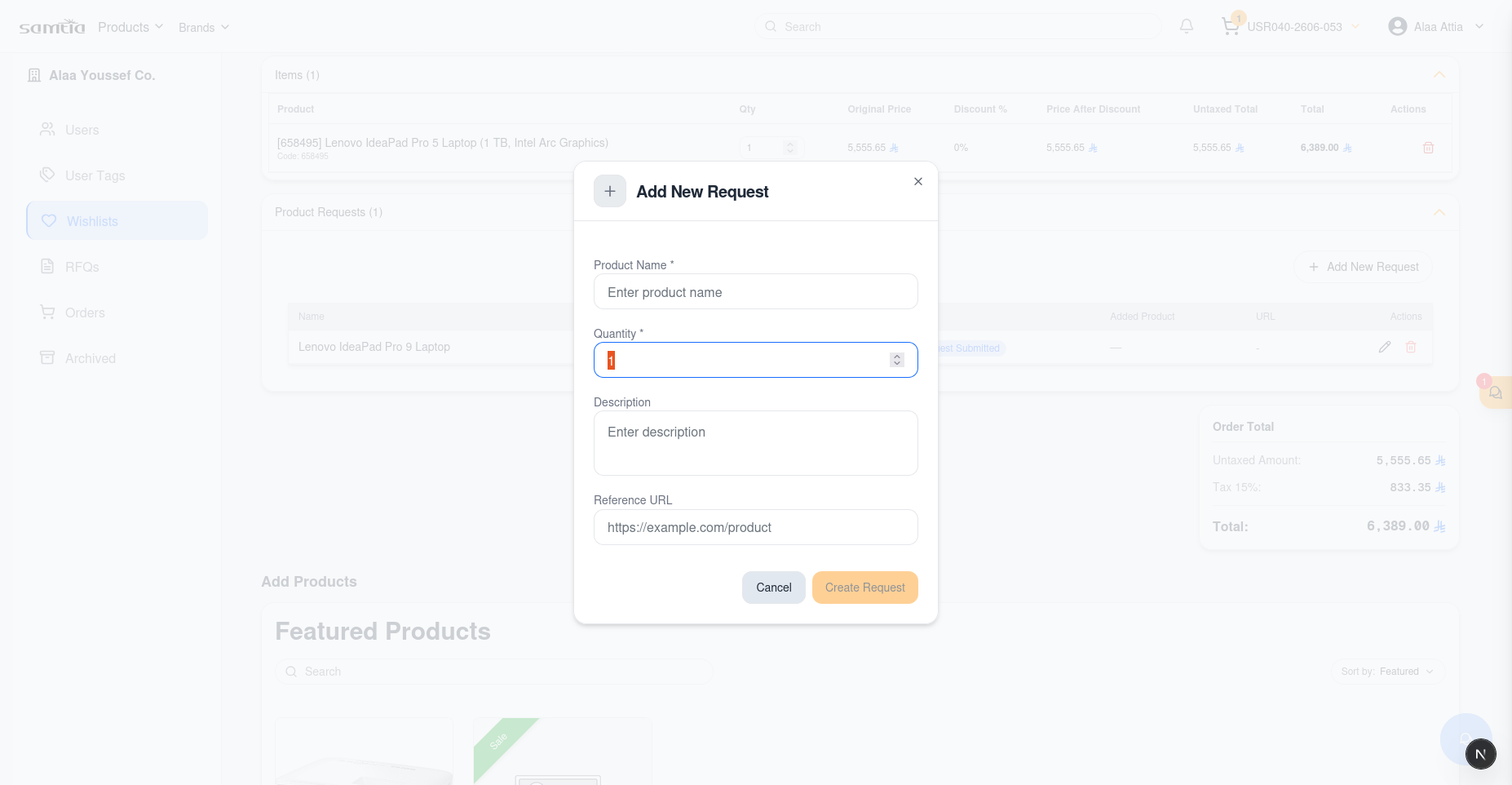
If you cannot find something in the catalogue, ask for it directly on the order.
Where: Order Details → New Product Requests panel.
| Field | What to enter |
|---|---|
| Product name | What you are looking for |
| Description | Specification, part number, anything that helps identify it |
| Quantity | How many you need |
| Reference URL | A link to the product elsewhere, if you have one |
What happens next
flowchart LR
    A["You submit<br/>the request"] --> B["Account Manager<br/>picks it up"]
    B --> C{"Can SAMTIA<br/>source it?"}
    C -->|Yes| D["Product added to<br/>your order automatically"]
    C -->|No| E["Marked as<br/>Not Found"]
You can edit or delete your own requests while they are still open. When a request is fulfilled, the product appears as a normal line on your order — you do not need to add it yourself.
Business rules
- Requests belong to a specific order, so raise them on the draft request or RFQ they relate to.
- A request cannot be changed once the order is finalised.
- The reference URL is optional but genuinely speeds up sourcing — include it when you have one.
Tips
- Watch for the Account Manager Note. It is the most common place a question or condition is recorded, and it is easy to scroll past.
- A returned order is not a rejection. Check the Return Reason, make the change, and submit again.
- Set the Requested Delivery Date honestly. It drives the Late / On Time / Upcoming flag your Account Manager uses to prioritise work.
- Editing a received quotation marks it as changed but not resubmitted. Remember to submit it again, or your Account Manager will not know to look.